The Calm Data Shortcut: Going From Stack Trace to Relevant Rows in Under Five Clicks

Most production bugs share the same shape:
- An alert fires.
- Someone pastes a stack trace into Slack.
- A few people squint at it, guess at the root cause, and start jumping between tools.
Error tracker → logs → dashboards → SQL IDE → admin console.
By the time you’re actually looking at the rows that matter, you’ve burned 20 minutes of the incident on navigation alone.
This post is about shrinking that gap. Specifically: designing a path from stack trace to relevant rows in under five clicks.
Not a hero move. Not a lucky guess. A repeatable workflow that any on‑call engineer or support partner can follow.
Along the way, we’ll lean on tools like Simpl — an opinionated, read‑only database browser — but the core ideas apply to any team that cares about calmer, safer production reads.
Why this shortcut matters
Moving from stack trace to rows quickly isn’t just about speed. It changes how incidents feel and how your team works.
1. You reduce guesswork.
Stack traces are good at telling you where something failed. They’re terrible at telling you what actually happened to a specific user or object.
A calm path to rows lets you:
- See the exact record that triggered the error.
- Compare it to a known‑good case.
- Confirm or kill hypotheses in minutes, not meetings.
This is the same stance as the "read the rows" mindset from The Anti-Metric Debug Session, but focused on the very first step.
2. You lower cognitive load during incidents.
Every extra tool, tab, and context switch is a tax on attention. When you’re on call at 02:00, that tax is expensive.
A five‑click path:
- Shrinks the number of decisions you need to make.
- Keeps you inside a single, calm interface.
- Makes it easier to narrate what you’re doing to others.
This is exactly the kind of constraint we argue for in Focus-First Database Tooling: measure the decisions per minute, not the feature count.
3. You make production data access safer by making it boring.
When the “go look at the data” path is sharp, stressful, and expert‑only, you end up with:
- Private heroics in a powerful SQL IDE.
- Shadow admin panels with half‑documented flows.
- A quiet fear of letting more people look at production.
A calm, constrained path — ideally in a read‑only tool like Simpl — lets you:
- Onboard more people to safe production reads.
- Standardize incident workflows.
- Turn one‑off hero work into a shared practice.
The shape of a five‑click path
Let’s define the target.
From the moment you see a stack trace, you want to:
- Identify the key identifiers in the trace.
- Jump into a calm database browser.
- Land on the right table and filter.
- See the exact row (or small set of rows) that matter.
- Optionally pivot to closely related rows (events, jobs, payments) without losing the thread.
All of that should fit inside:
- One primary tool (ideally Simpl, or something with a similar stance).
- Under five deliberate clicks, plus a tiny bit of typing.
If that sounds optimistic, it’s usually because your current setup has one or more of these problems:
- No shared mapping from error context → database tables.
- No direct link from error tracker/logs into a calm browser.
- A noisy schema surface that makes table selection slow.
- A blank SQL canvas instead of opinionated filters.
We’ll tackle each of these in turn.
Step 1: Normalize the identifiers in your stack traces
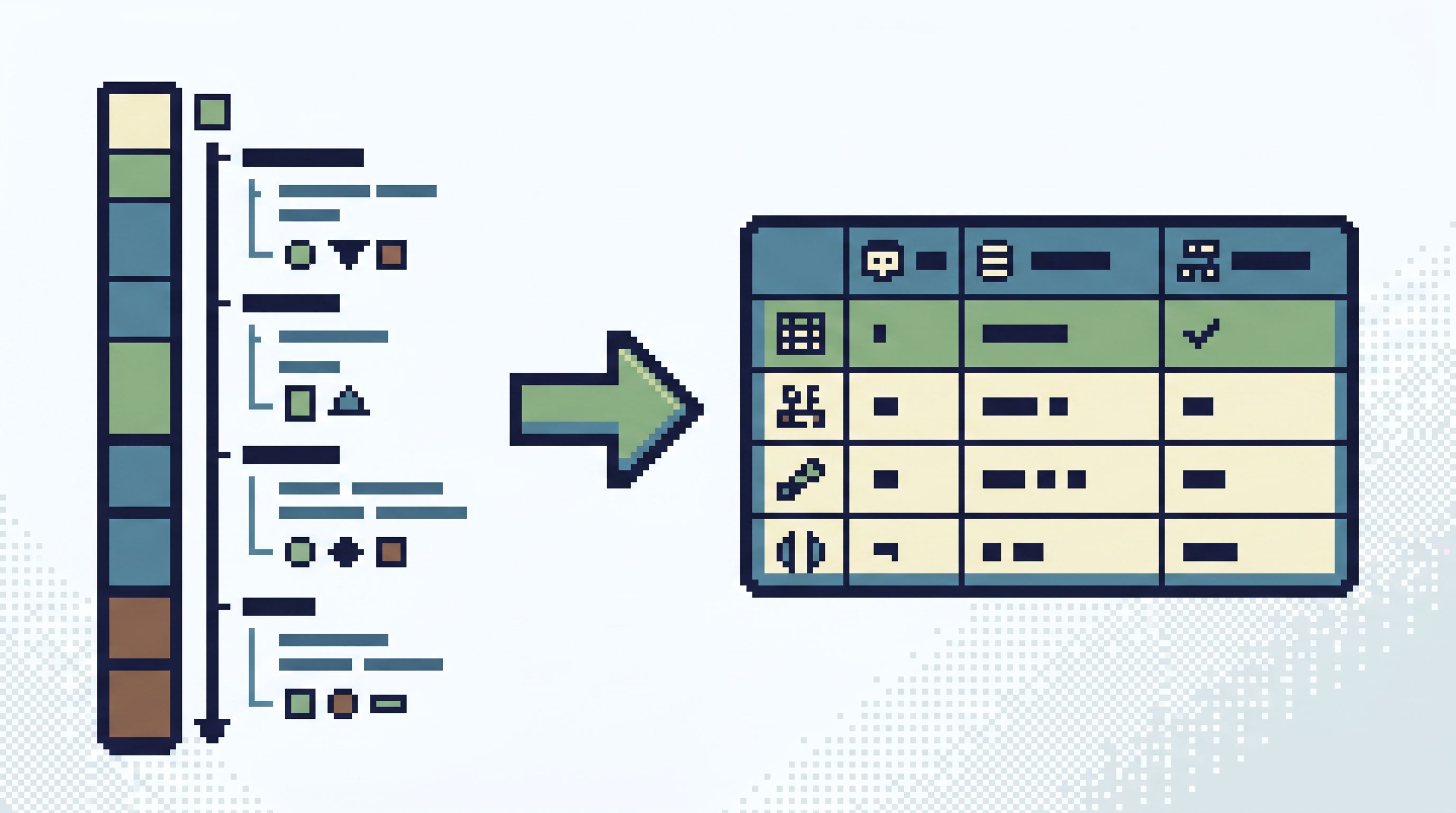
The stack trace is your entry point. Treat it as structured input, not a wall of text.
Most traces already contain the information you need:
- User identifiers:
user_id,account_id, email, or external IDs. - Domain identifiers:
order_id,subscription_id,job_id,invoice_id. - Request identifiers:
request_id, trace IDs from systems like OpenTelemetry or Honeycomb.
Your goal is to make sure that the same identifiers appear:
- In your application logs.
- In your error tracker (e.g. Sentry, Rollbar).
- In your database rows.
- In your calm browser’s default filters.
A few concrete practices:
-
Standardize primary keys in logs and traces.
- Always log
user_id,tenant_id, and the primary domain object ID when you log an error. - Avoid relying on emails or human names as the only identifiers; they’re noisy and mutable.
- Always log
-
Expose those identifiers prominently in error tools.
- Configure Sentry/Rollbar to extract
user_idandorder_idinto tags or custom fields. - Make sure they’re visible at the top of the error page, not buried in JSON.
- Configure Sentry/Rollbar to extract
-
Align naming between code and database.
- If your table is
subscriptionswithid, don’t log it assub_idin some places andsubscriptionin others. - Boring, consistent names are a prerequisite for a five‑click path.
- If your table is
This step doesn’t require new tools. It’s mostly discipline. But without it, everything downstream is guesswork.
Step 2: Make your database browser the default next step
Once you have clean identifiers, you want a single, calm place to use them.
That’s where an opinionated browser like Simpl comes in:
- Read‑only by design.
- Thin query surface, tuned for production reads.
- Focused schema view, not a full ERD or catalog.
To make it your default next step from a stack trace:
-
Pick one primary interface for production reads.
If people are split between a SQL IDE, BI tool, and internal admin panels, your five‑click path will never be reliable. Choose one browser for row‑level investigations and make it the obvious choice. -
Give it pride of place in incident docs and runbooks.
The sequence should read something like:- Alert fires.
- Triage in error tracker.
- Extract identifiers.
- Open Simpl and follow the stack‑trace path.
-
Keep the interface narrow.
Resist the urge to turn your browser into a full admin console. The more modes and panels it accumulates, the harder it is to keep the path simple. Posts like The Anti-Workspace: Why Fewer Panels Make Database Debugging Easier go deeper on why this matters.
The goal is cultural as much as technical: everyone learns that “seeing what actually happened” means opening the same calm tool, not improvising.
Step 3: Design a calm schema surface for incident work
Once you’re inside your browser, the first decision is always the same: which table?
This is where many teams lose five clicks before they start:
- Giant schema trees.
- Alphabetical table lists with no context.
- Dozens of similarly named tables (
user,users,user_profiles,user_data_v2).
To keep the path short, you need a calm schema surface tuned for everyday production reads:
- A small set of incident‑relevant tables surfaced first:
users,accounts,subscriptions,orders,jobs,payments,events. - Clear, human‑readable labels or descriptions.
- A search box that actually matches the names you use in stack traces.
In The Calm Schema Surface: Showing Just Enough Structure for Everyday Production Reads, we argue that most engineers don’t need a full ERD to debug a user issue. They need:
- The right 10–20 tables.
- Obvious primary keys.
- A few well‑chosen foreign keys.
In practice, this means:
- Curate a favorites list in your browser for incident tables.
- Hide or de‑emphasize archival, analytics, or internal helper tables.
- Align table display names with the domain terms that appear in your stack traces.
If your browser supports per‑team configuration, you can even define an “incident schema view” that’s narrower than your full schema.
Step 4: Replace free‑form SQL with opinionated filters
Even with the right table, a blank SQL editor is friction.
You don’t want the on‑call engineer to:
- Remember the exact column name.
- Write a
SELECTfrom scratch. - Worry about
LIMIT, indexes, or performance.
You want them to:
- Paste an identifier.
- Hit enter.
- See the row.
That’s where a narrow query editor helps — something like the one we describe in The Narrow Query Editor: Designing Just-Enough SQL for Everyday Production Reads.
Concretely:
-
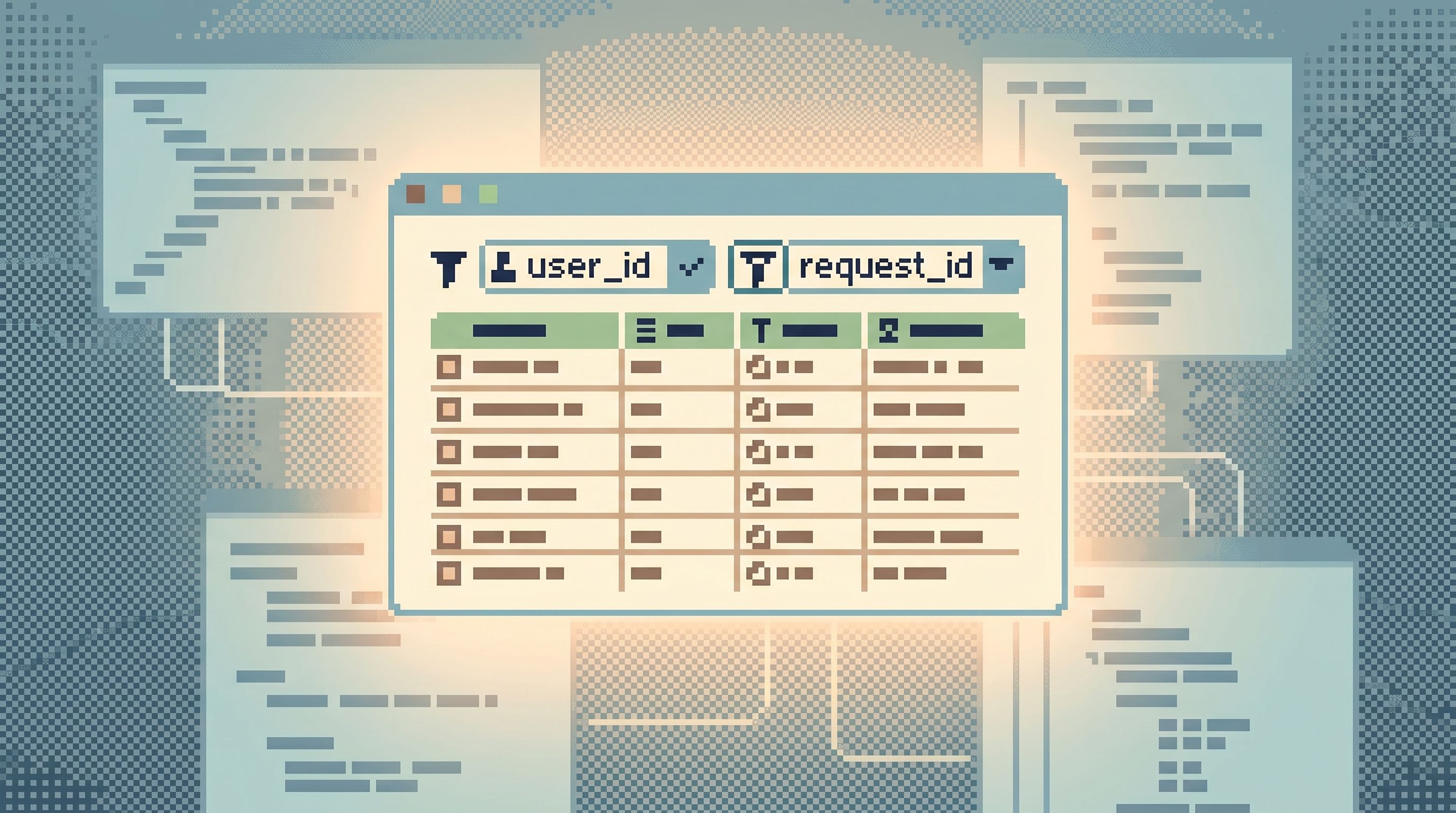
Expose key filters as first‑class controls.
For each incident‑relevant table, predefine filters for:iduser_idoraccount_idrequest_idortrace_id- Domain IDs (
subscription_id,order_id, etc.)
These should be visible as simple input fields or chips — no SQL required.
-
Provide a single, safe default query.
For example:SELECT * FROM subscriptions WHERE id = :id LIMIT 50;The user only supplies
:id. The tool handlesLIMIT, formatting, and safety. -
Offer structured pivots instead of ad‑hoc joins.
Instead of expecting people to write:SELECT * FROM events WHERE user_id = :user_id ORDER BY created_at DESC LIMIT 100;…provide a "View recent events for this user" link from the
userstable row. Under the hood, it runs the safe query; from the user’s perspective, it’s one click.
Tools like Simpl are built around this idea: keep the query surface thin, resist the temptation to become a general‑purpose SQL IDE, and make the common incident reads almost trivial.
Step 5: Add deep links from error tools into your browser
Now you have:
- Clean identifiers in stack traces.
- A single calm browser for production reads.
- A curated schema surface.
- Opinionated filters and pivots.
The last piece is removing the manual step of “open the browser, find the table, type the filter.” You want to click from error → rows directly.
Most error and logging tools support this pattern via custom links or integrations:
- Sentry has issue and tag links where you can interpolate tag values into URLs.
- Datadog and New Relic support similar mechanisms in logs and traces.
If your browser (or Simpl) supports URL‑addressable filters, you can:
-
Define a URL pattern like:
https://your-simpl-instance/t/subscriptions?filter[id]=${subscription_id} -
In Sentry, create a custom link called “Open in Simpl” that uses the
subscription_idtag. -
In your logs UI, add a link that passes
user_idorrequest_idthe same way.
Now the five‑click path looks like:
- See stack trace in Sentry.
- Notice
subscription_id=abc123tag. - Click “Open in Simpl.”
- Land on
subscriptionstable withid = abc123filter applied. - (Optional) Click “View related events” pivot.
No copy‑paste. No manual table selection. No ad‑hoc SQL.
Step 6: Build small, repeatable trails
Once you can go from stack trace to rows quickly, the next step is making that work replayable.
Instead of:
- A one‑off query written during a stressful incident.
- A private tab that only the on‑call engineer remembers.
…you want:
- A short, named trail: "User checkout failure — request_id path".
- A pattern others can reuse with different identifiers.
Opinionated tools like Simpl can help by:
- Recording the sequence of tables and filters you used.
- Letting you save that sequence as a template.
- Making it easy to swap in a different
user_idorsubscription_idnext time.
This is the same direction we explore in posts like From Query Zoo to Query Library and Post-Saved-Query Workflows: move from scattered, personal SQL stashes to a shared library of calm read paths.
Even if your current tool doesn’t support trails explicitly, you can approximate it by:
- Documenting 3–5 common “from stack trace to rows” paths in your runbooks.
- Including the exact filters and tables to use.
- Linking directly into your browser with URL templates.
Over time, these trails become the backbone of your incident culture.
A concrete example: subscription charge failure
Let’s pull this together.
You receive an alert: ChargeFailedError in Billing::ChargeSubscription.
Your stack trace (in Sentry) shows:
user_id = 8421subscription_id = sub_9f3arequest_id = req_17c7
Here’s the five‑click path in a calm setup with Simpl:
-
Open the Sentry issue.
You see the tags at the top. -
Click “Open subscription in Simpl.”
Custom link usessubscription_idto open:
…/t/subscriptions?filter[id]=sub_9f3a -
Inspect the subscription row.
You immediately see:status = past_duerenewal_attimestamplast_charge_errorcolumn
-
Click “View recent invoices for this subscription.”
A pivot link opensinvoicesfiltered bysubscription_id = sub_9f3a, ordered bycreated_at DESC. -
Click “View payment attempts for this invoice.”
Another pivot topayment_attemptsfiltered byinvoice_id.
At this point, you’ve:
- Confirmed the exact invoice that failed.
- Seen the payment gateway error message.
- Compared timing with the deployment that just went out.
All without writing SQL, opening a second tool, or guessing which table to look at.
Making this real on your team
You don’t need a full tooling overhaul to get from stack trace to rows in under five clicks. You can start small:
Week 1–2: Clean up identifiers and error tags.
- Standardize logging of
user_id,tenant_id, and key domain IDs. - Expose them as first‑class tags in your error tracker.
Week 3–4: Choose and configure a calm browser.
- Pick a primary tool for production reads — ideally Simpl or something with similar constraints.
- Curate an incident‑focused schema view.
- Add opinionated filters for key tables.
Week 5–6: Wire up deep links and trails.
- Add “Open in browser” links from your error tracker and logs.
- Document 3–5 common paths as runbook entries or shared trails.
- Run one incident review focused purely on: "How many clicks from trace to rows?" and adjust.
Each step is small. Together, they turn production debugging from a scavenger hunt into a short, repeatable path.
Summary
A five‑click path from stack trace to relevant rows isn’t a luxury. It’s the difference between:
- Guessing at root causes versus reading what actually happened.
- Stressful, hero‑driven incidents versus calm, shared workflows.
- Risky, improvised SQL versus opinionated, safe production reads.
You get there by:
- Normalizing identifiers across stack traces, logs, and tables.
- Making a calm browser like Simpl the default place to read production data.
- Designing a focused schema surface and narrow query editor.
- Wiring deep links from error tools into pre‑filtered table views.
- Turning ad‑hoc investigations into small, reusable trails.
The result: fewer tabs, fewer decisions, and a much shorter distance between “we saw an error” and “we understand what happened.”
Take the first step
You don’t need to redesign your whole stack to feel this difference.
Pick one common error — a subscription failure, a background job timeout, a checkout bug. For that single case:
- Ensure the stack trace carries a stable
user_idor domain ID. - Configure your error tracker to show it as a tag.
- Set up a link that opens your database browser — ideally Simpl — on the right table, filtered by that ID.
Run the next incident using that path. Count the clicks.
If it feels calmer, make it the new standard.
That’s the quiet power of a five‑click shortcut: once your team experiences it, you won’t want to go back to wandering through tools just to see a single row.