Post-Dashboard Debugging: Why Incident Workflows Need Trails, Not Tiles


Dashboards are good at one thing: telling you that something is wrong.
A chart goes red. An error rate spikes. A latency panel jumps.
That’s the start of an incident, not the workflow.
Most teams stop designing there. They invest heavily in tiles — dashboards, boards, widgets — and leave the rest of the incident path to habit and heroics. People bounce from a red chart to logs, to traces, to ad‑hoc SQL, to Slack screenshots. Every incident becomes a one‑off.
This post is about the layer after the dashboard.
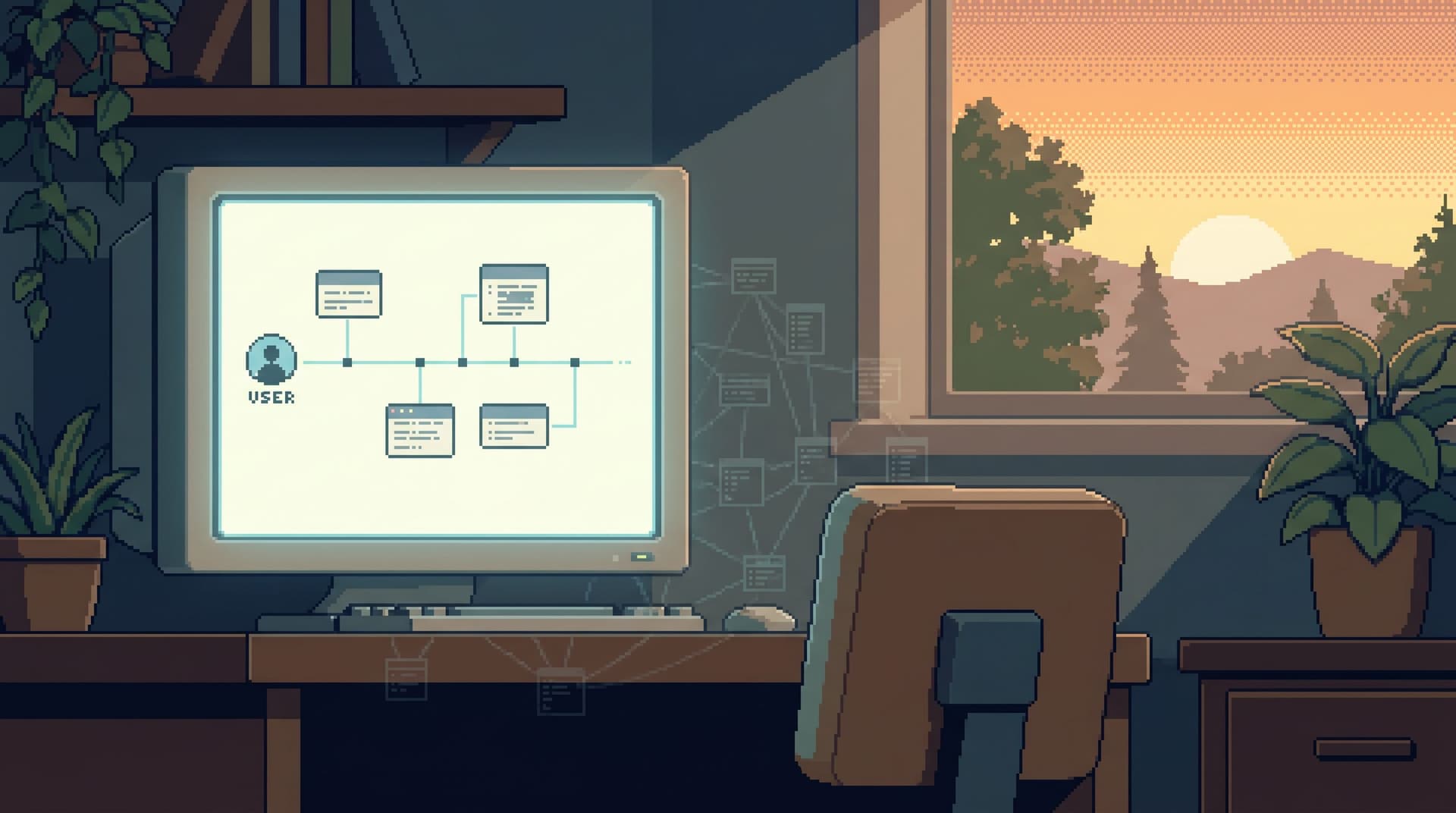
It’s an argument for trails: opinionated, replayable paths from alert → data → decision, instead of a wall of tiles and a pile of tools.
Tools like Simpl exist exactly for this middle layer: a calm, read‑first database browser for following data trails without the noise of full BI or admin consoles.
Tiles tell you that; trails show you what and why
Think about your last serious incident.
You probably had:
- An alert from something like Prometheus, Datadog, or New Relic
- One or more dashboards lighting up
- A Slack channel with links, screenshots, and theories
But the actual work of resolving it looked more like:
- Finding the specific user, job, or request that’s broken
- Following it across services and databases
- Understanding exactly which rows changed, and when
- Turning that into a concrete decision: rollback, hotfix, feature flag, or “watch and wait”
Dashboards are optimized for aggregates:
- Error rate over 5 minutes
- P95 latency for an endpoint
- Count of failed jobs by queue
Incidents are resolved on stories:
- What happened to this user’s last three orders?
- Why did this payout get stuck in processing?
- Which tenants were actually impacted by that migration?
Tiles are a good alarm clock. Trails are how you walk the house and see what’s actually happening.
For a deeper look at this shift from dashboards to concrete paths, see From Dashboards to Data Trails: A Minimal Workflow for Following an Incident Across Services.
Why post-dashboard workflows quietly fail
Most teams have a familiar pattern once a dashboard goes red:
- Alert fires → someone opens the main dashboard.
- Drill-down panels → click a few tiles, filter by service or endpoint.
- Context handoff → jump to logs, traces, or a SQL console.
- Ad‑hoc spelunking → write one-off queries, share screenshots, tweak filters.
On paper, this sounds reasonable. In practice, it leads to the same problems over and over.
1. Context gets dropped at every hop
Each tool speaks a different language:
- Dashboards talk in metrics (rates, counts, latencies).
- Logs talk in events.
- Traces talk in spans.
- Databases talk in rows.
You end up translating:
“This spike in 500s on /checkout around 13:02 UTC”
into “these 3 trace IDs”
into “these 12 log lines”
into “these 4 user IDs and 2 orders.”
That translation is usually manual, fragile, and undocumented.
2. Every incident is a fresh maze
You may have a runbook doc, but the actual path is improvised:
- Someone remembers a useful query from last time.
- Someone else knows which admin console has the real data.
- A third person has a half‑finished notebook from a past incident.
Nothing about that is calm or repeatable.
3. Dashboards encourage watching, not walking
When the main tool is a grid of tiles, the natural move is to:
- Add more tiles
- Add more filters
- Add more panels
You optimize for watching charts instead of walking a trail through concrete data. The incident becomes a spectator sport.
If this feels familiar, you might like Database Work Without the Dopamine: Escaping the Refresh-Query-Refresh Loop, which digs into why this “refresh and stare” pattern is so sticky.
What a trail actually is
A trail is not a dashboard and not a single query.
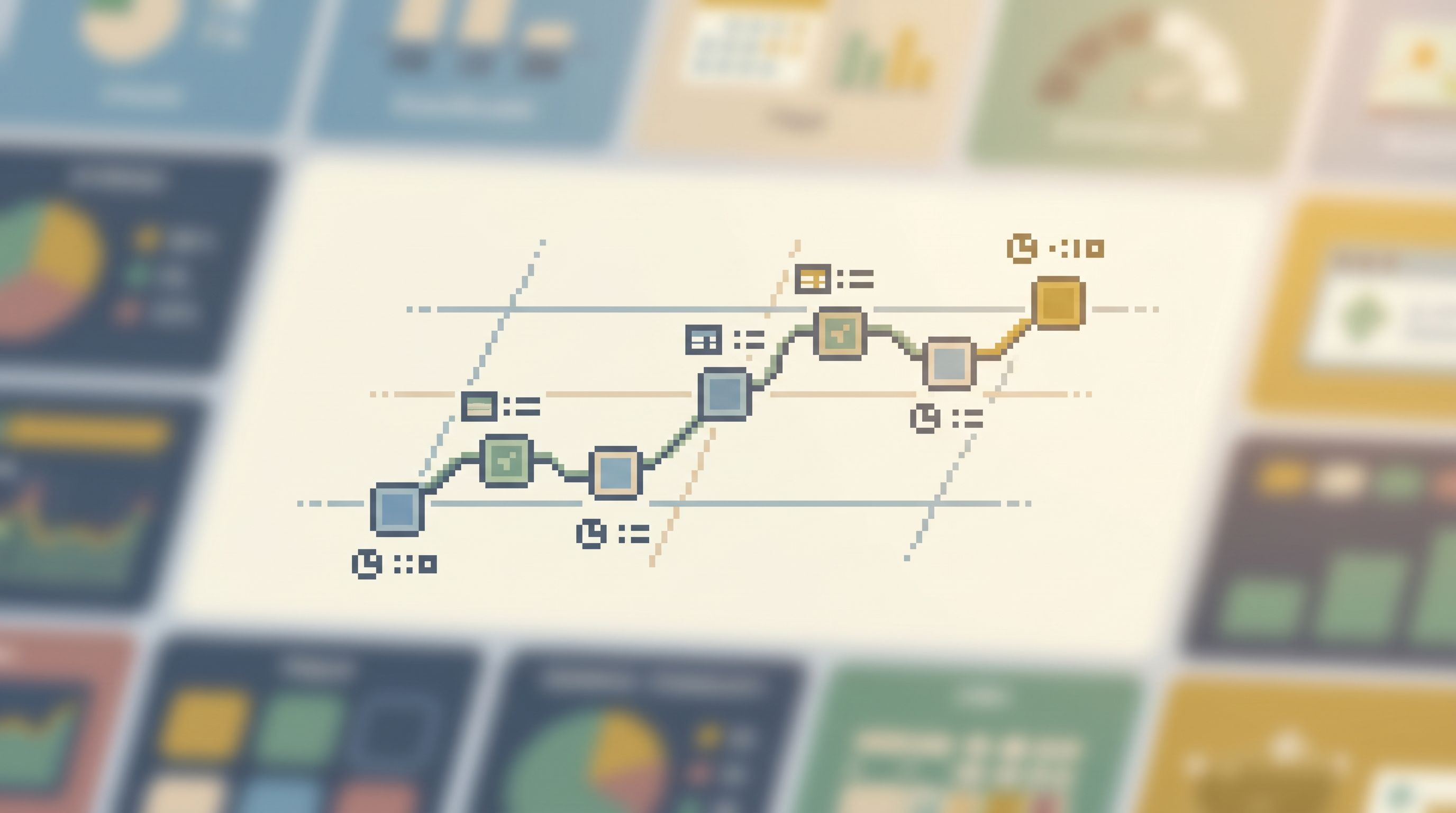
A trail is a structured path through your data that:
- Starts from a real incident entry point (alert, ticket, log line, user ID)
- Encodes a small number of deliberate steps, not an open canvas
- Preserves chronology and context as you move
- Can be replayed for audit, learning, and future incidents
Concretely, a trail looks like:
- Start with a key: user ID, order ID, trace ID, job ID.
- Follow a fixed sequence of reads:
- Lookup user → recent orders → payment attempts → background jobs → related feature flags.
- At each step, you see:
- The relevant rows
- The filters and joins used
- The timestamped place in the story
- When you’re done, you have:
- A coherent narrative: “At 13:01:47, this flag flipped; at 13:02:03, the job retried and failed with X; at 13:02:45, the user saw a 500.”
- A saved trail you can share or replay, not just a screenshot.
A tool like Simpl is built around this idea: instead of a blank SQL editor and a schema tree, you work inside opinionated, repeatable trails that mirror how your team actually investigates.
Designing post-dashboard trails for incidents
Let’s make this concrete. Here’s a simple way to design trails that sit after your dashboards and before your code changes.
1. Start from your top 3 incident types
Don’t try to model everything.
Pick the three most common or costly incident patterns, for example:
- Checkout errors for a subset of users
- Stuck background jobs in a specific queue
- Data mismatches between two systems (e.g., billing vs. internal ledger)
For each, write down:
- Entry signal: which alert or dashboard tile usually fires first?
- Key identifier: what concrete ID do you usually end up chasing? (user, order, job, tenant, trace)
- Typical decision: what do you usually decide at the end? (rollback, re‑run job, refund, flag change)
This gives you a shape: from tile → ID → decision.
2. Define a straight-line read path
For each incident type, sketch a minimal sequence of reads.
Example: “Checkout 500s for specific users”
- Identify a concrete user or order from logs or traces.
- User profile read
SELECT * FROM users WHERE id = :user_id
- Recent orders read
SELECT * FROM orders WHERE user_id = :user_id ORDER BY created_at DESC LIMIT 5
- Payment attempts read
SELECT * FROM payments WHERE order_id IN (:order_ids) ORDER BY created_at
- Background jobs read
SELECT * FROM jobs WHERE order_id IN (:order_ids) ORDER BY created_at
- Feature flags / config read
SELECT * FROM feature_flags WHERE user_id = :user_id OR scope = 'global'
That’s a trail. Not a general‑purpose console. Not a schema explorer. A straight line.
If you want a deeper dive into this “single read path” mindset, Less Tabs, More Trails: Structuring Long Debugging Sessions as One Continuous Read Path goes into more detail.
3. Make the trail parameterized, not ad‑hoc
The biggest trap is turning this into another saved query graveyard.
Instead:
- Treat the entry ID (user, order, job) as the only parameter.
- Wire each step to reuse that parameter (and IDs derived from it) automatically.
- Avoid optional filters and toggles unless they’re truly necessary.
When someone pastes an order ID into the trail, they should get the entire story in a few deliberate clicks — not a canvas of knobs to configure.
Tools like Simpl lean into this: opinionated read paths where parameters are simple, safe inputs, not mini‑dashboards.
4. Keep the chronology front and center
Incidents are stories over time. Your trail should reflect that.
Across each step:
- Sort by time in the direction of the story (usually ascending).
- Keep timestamps visible and consistent.
- Consider grouping by logical phases:
- Request received
- Downstream calls
- Background processing
- Final state / user-visible effect
This is where trails differ from tiles: instead of “error count per minute,” you’re seeing this one user’s timeline from first request to final state.
For more on designing this end‑to‑end view, The Quiet Chronology: Replaying an Incident from Logs to Rows Without Opening Ten Tools is a good companion.
5. Bake in guardrails and defaults
A trail is also a safety boundary.
You can:
- Use read‑only queries by default.
- Scope queries tightly around the entry ID and a short time window.
- Hide or pre‑configure joins that are easy to misuse.
- Cap row counts to “enough to understand,” not “everything forever.”
This is where a focused browser like Simpl sits between admin tools and raw SQL: you get opinionated, safe defaults for production reads, without giving up the ability to see the rows that matter.
How trails change incident behavior
Once you have even a couple of solid trails, incident workflows start to feel different.
1. On‑call engineers ask better questions
Instead of:
- “Which dashboard should I look at?”
- “Where’s that query from last time?”
You hear:
- “Which trail do I start from for this alert?”
- “What ID should I plug into the trail?”
The conversation moves from tools to stories.
2. Handoffs become concrete, not fuzzy
When you escalate, you can share:
- A link to the exact trail run you followed
- The IDs you used
- The specific step where the story got confusing
No more reconstructing context from screenshots.
3. Learning and postmortems get sharper
For post‑incident review, you can:
- Replay the exact trail used during the incident
- Compare it to the trail you wish you had
- Update the trail definition instead of just adding another dashboard
You’re improving the path, not just the monitoring.
4. New teammates get a safer on‑ramp
Instead of throwing them into a schema forest with full SQL access, you can:
- Start them on read‑only trails for common incidents
- Let them see real production stories without risk
- Gradually expose more powerful tools as they gain context
A read‑only, opinionated browser like Simpl makes this especially natural.

Where dashboards still fit
This is not an argument against dashboards.
Dashboards are great for:
- Detection: noticing that something changed.
- Orientation: is this localized or global? Spiky or flat? Ongoing or past?
- Communication: giving leadership and adjacent teams a quick, shared view of impact.
The shift is simply this:
- Dashboards are entry points, not destinations.
- The real work happens on trails that start from those entry points.
A calm stack separates the two:
- Use dashboards to raise the question.
- Use trails to answer it.
A minimal rollout plan
If you want to move from tiles to trails without a big project, start small.
Week 1: Observe your next incident
- During the next non‑trivial incident, keep a simple log:
- Which tools did you open, in what order?
- Which IDs did you end up caring about?
- Which queries did you re‑run or tweak multiple times?
- Afterward, sketch the implicit trail you followed.
Week 2: Encode one trail
- Pick the single most painful or common incident path from Week 1.
- Turn it into a straight‑line read path:
- One entry ID
- 3–6 ordered reads
- Clear timestamps and filters
- Implement it in whatever tool is closest to hand:
- A focused browser like Simpl
- A small internal app
- Even a carefully structured notebook, as a first version
Week 3–4: Use it for real
- Announce the trail in your on‑call docs.
- During relevant incidents, force yourself to start from the trail.
- Note where you still have to escape to ad‑hoc queries or extra tools.
Then iterate:
- Tighten the queries.
- Adjust the order of steps.
- Add one or two more trails for other incident types.
You don’t need a full framework. You just need a few good paths that are better than improvising.
Summary
Dashboards are necessary, but they’re not enough.
- Tiles are great at telling you that something is wrong.
- Trails are how you learn what happened and why — at the level of specific users, jobs, and rows.
- A trail is a straight‑line, replayable path from an incident entry point to concrete data and a decision.
- Designing trails around your top incident types turns chaotic, tool‑hopping workflows into calm, opinionated flows.
- Read‑only, focused tools like Simpl make it practical to encode these trails as first‑class objects, not just tribal knowledge.
Post‑dashboard debugging is about treating the path from alert to rows as something you can design, not just something you react through.
Take the first step
You don’t need to rebuild your monitoring stack.
Pick one recurring incident pattern, and do three things:
- Write down the actual path you took last time — tools, IDs, queries, timestamps.
- Turn that into a straight‑line trail with a single entry ID and a handful of ordered reads.
- Implement it in a calm, focused place — whether that’s an internal tool or a dedicated browser like Simpl.
The next time a dashboard goes red, don’t add another tile.
Follow a trail instead.