From Metrics to Rows: A Focused Workflow for Jumping from Alerts into Production Data


When an alert fires, you don’t actually care about graphs.
You care about people and rows:
- Which customers are affected?
- Which orders are stuck?
- Which jobs are silently failing right now?
Metrics tell you that something is wrong. Rows tell you what is wrong.
Most teams have invested heavily in observability: metrics, logs, traces, paging. That’s good. But the handoff from “alert is red” to “I am calmly looking at the exact rows that matter” is still messy for many teams.
This post is about that handoff: a focused workflow for moving from alerts to production data without wandering through dashboards, schema trees, and ad‑hoc queries.
Along the way, we’ll lean on the same stance that runs through Calm Data: opinionated, narrow paths beat open‑ended exploration—especially against production.
Why the jump from metrics to rows is where incidents stall
Incident metrics like MTTR (mean time to recovery) are still the standard way teams talk about how well they handle outages. They’re not perfect, but they do highlight one thing clearly: every extra minute between “alert fired” and “I’m looking at the right rows” is expensive.
What quietly burns that time isn’t always detection anymore—modern alerting is good at telling you something is off. The drag lives in the middle:
- You open a dashboard to confirm the alert.
- You click into three more dashboards “just to see the shape.”
- You open a SQL client or admin panel.
- You stare at a schema tree or blank editor.
- Only then do you start figuring out which rows matter.
By then, 10–20 minutes can disappear without a single precise read against production.
The cost isn’t just MTTR. It’s:
- Cognitive load. Context switching between tools, tabs, and query editors.
- Risk. Wide, improvised queries against hot tables during an incident.
- Fragmented stories. Screenshots and one‑off queries instead of a coherent trail you can replay later.
A calmer approach starts from a simple principle:
Every alert should have a default path to concrete rows.
Not a vague idea of “go check the database.” A specific, repeatable path.
If you’ve read about quiet observability, this will sound familiar: treat production reads as a first‑class observability surface, not just a last‑resort debugging move.
The core idea: alerts as entry points into opinionated read paths
Most alerts today land in one of three buckets:
- Service‑level alerts – error rates, latency, saturation for a service or endpoint.
- Workflow or job alerts – queue backlogs, failed jobs, stuck pipelines.
- Business or data quality alerts – billing mismatches, missing events, abnormal counts.
Each of these can and should map to a pre‑designed way of reading rows:
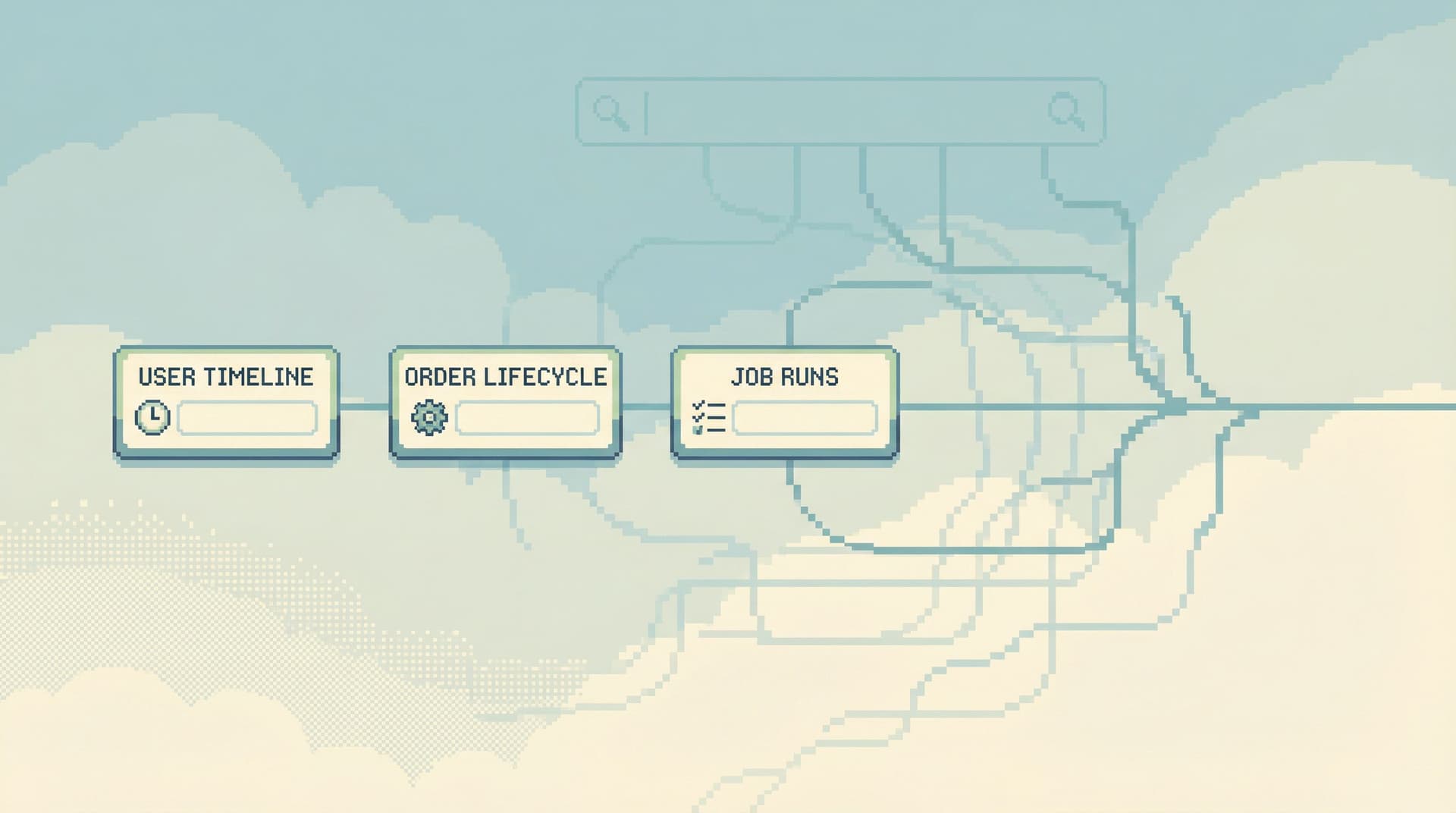
- A user‑centric view for customer‑impacting issues.
- A job‑run view for background failures.
- A domain‑specific view for critical business entities (orders, payments, invoices).
Tools like Simpl exist specifically to host these kinds of calm, opinionated reads instead of dropping you into a blank SQL editor.
The workflow we’re aiming for looks like this:
- Alert fires.
- Alert payload includes just enough context (IDs, tags, environment, time window).
- A single link takes you into a focused production view that:
- Is already filtered to the relevant entities.
- Shows the key relationships and recent history.
- Makes it hard to wander away from the incident path.
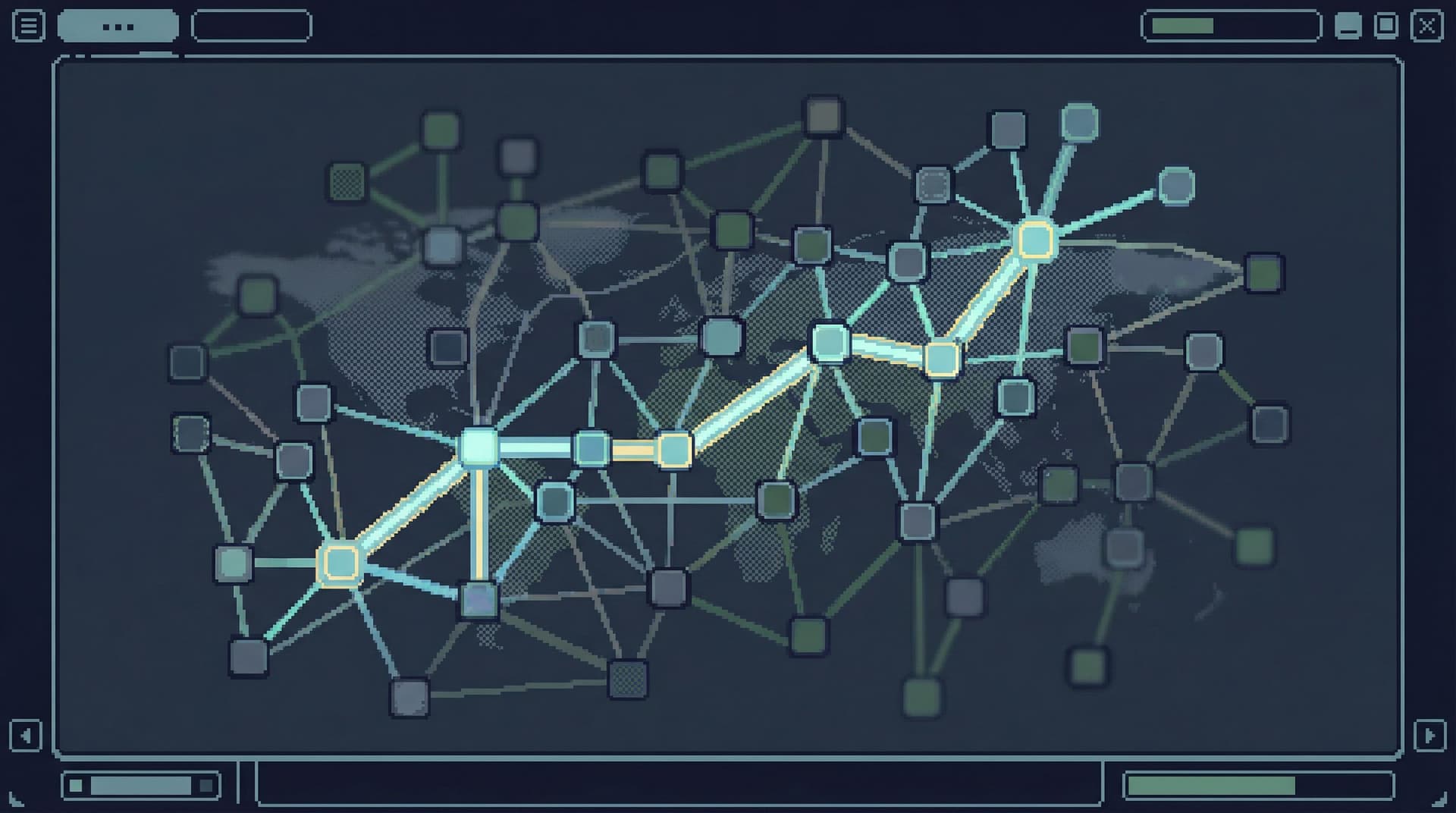
This is the same spirit as the “narrow incident browser”: structure your production reads around one failing path, not the entire schema.
Step 1: Decide which alerts deserve a direct path to rows
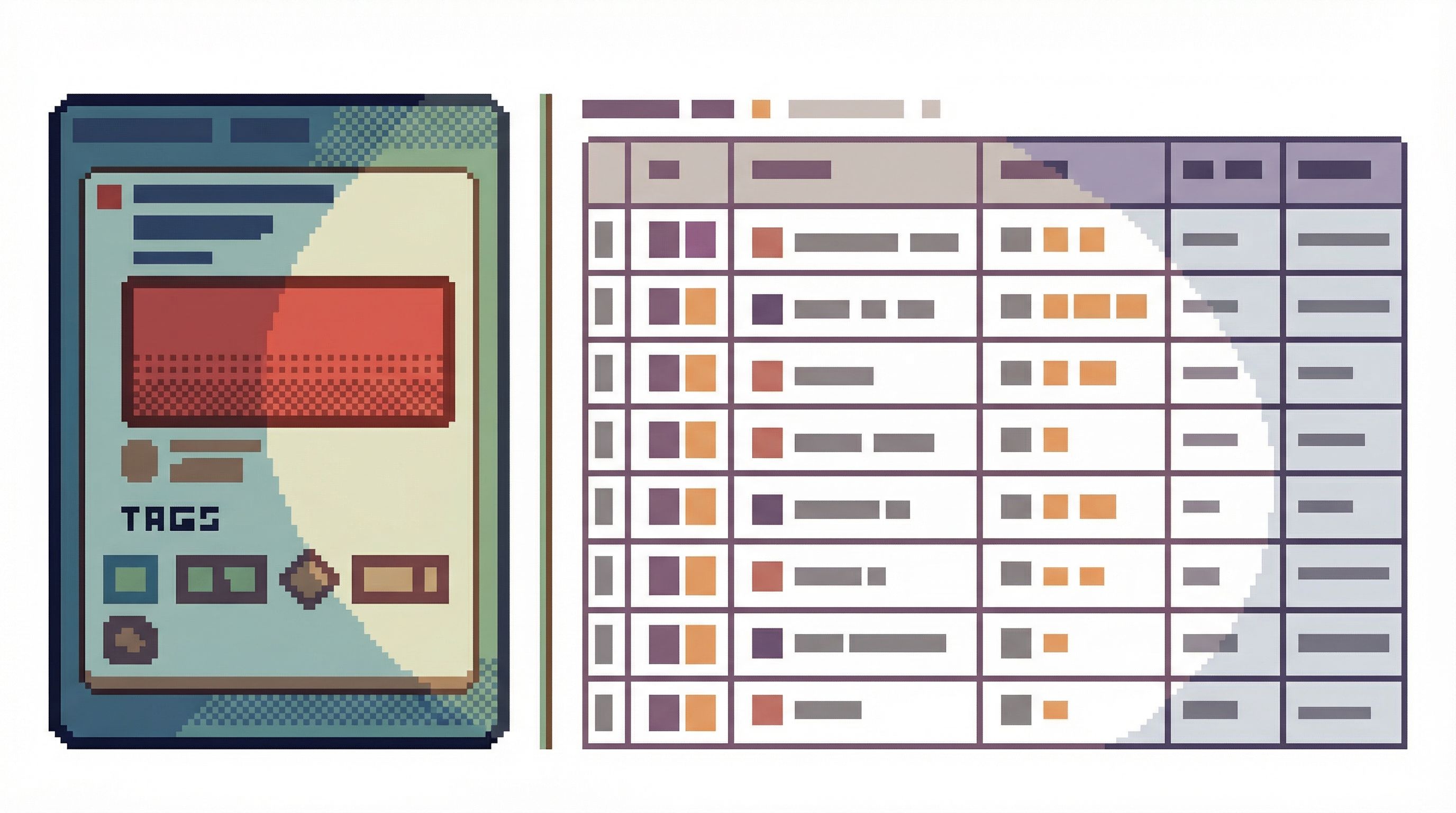
Not every alert justifies deep integration with your database browser. Start with the ones that hurt the most when you’re fumbling around:
Look back at the last 5–10 meaningful incidents and ask:
- Which alerts kicked them off?
- Where did you end up, concretely, in the database?
- Which tables and entities did you always need to inspect?
You’ll usually find a short list:
- Checkout latency or error spikes → always end up on
orders,payments,transactions. - Job backlog alerts →
jobs,job_runs,dead_letters. - Login or auth failures →
users,sessions,auth_events.
For each of these, write down:
- The alert name or pattern (e.g.
api.checkout.latency.p95 > threshold). - The primary entity you care about (e.g.
orderorjob_run). - The minimum context you wish the alert carried (e.g.
service,endpoint,region, maybe a sampleorder_id).
This is the seed of your “metrics → rows” workflow.
Step 2: Define a canonical read for each high‑value alert
Once you know which alerts matter, design one canonical view per alert type.
The goal is not flexibility. The goal is:
- Speed: zero decisions about which tables to open.
- Safety: no wide, improvised queries under pressure.
- Repeatability: the same path every time, so it can be improved and shared.
For each alert type, define a view that answers:
-
What are the concrete entities involved?
- For a checkout alert: orders in the last N minutes, filtered by service/region.
- For a job alert: recent job runs with status and error summaries.
-
What is the shortest query that gets you there?
- Aim for narrow predicates and explicit limits.
- Prefer indexed lookups on IDs or tight time ranges.
-
What context do you need on screen?
- Key status fields (state, error_code, retry_count).
- Time fields (created_at, updated_at, completed_at).
- Minimal joins to related entities (user, payment, external reference).
This is where a focused browser like Simpl helps: instead of a free‑form editor, you define opinionated “read rails” for each question. If you want to go deeper on that pattern, see Designing Read Rails.
Practically, your canonical read might be:
- A saved view in your database browser scoped to
orderswith pre‑set filters. - A parameterized query that takes
serviceandtime_windowas inputs. - A “customer story” view that shows a user’s last 24 hours of activity.
The important part: it’s the same every time that type of alert fires.
Step 3: Wire alert payloads to those reads
Now, connect the dots.
Most alerting tools let you customize notification payloads and links. Use that to embed a direct link into your database browser, carrying just enough parameters to land in the right place.
A workable pattern:
-
Enrich alerts with entity hints.
- For service alerts, include
service,endpoint,region, and a tight time window. - For job alerts, include
job_type,queue, maybe a samplejob_id.
- For service alerts, include
-
Standardize link templates.
- Define URLs like:
/reads/checkout-incidents?service={{service}}®ion={{region}}&since={{timestamp-15m}}/reads/job-backlog?queue={{queue}}&since={{timestamp-30m}}
- Configure these as buttons or links in your alert notifications.
- Define URLs like:
-
Land in a calm, scoped view.
- When someone clicks the link, they should see:
- Only the relevant entities.
- A clear time window.
- No schema tree, no empty editor, no temptation to wander.
- When someone clicks the link, they should see:
If you’re using Simpl, this is exactly the sort of integration to aim for: alerts become entry points into named, opinionated reads rather than generic “open Simpl” actions.
Step 4: Keep the workflow narrow during the incident
Once you’re in rows, the main risk is drift.
You start with a clean, filtered view. Ten minutes later, you’re:
- Joining in three more tables.
- Running a wide
SELECTagainst a billion‑row events table. - Opening a separate SQL client “just to check something.”
To keep the workflow calm:
1. Treat each incident as a single‑question session.
Anchor the work around one clear why: “What happened to orders in this region after 09:12?” If you feel the question changing, name it explicitly or start a new session. The ideas in The Single‑Question Session apply directly here.
2. Make the incident path hard to escape.
Use a browser that:
- Keeps the current filter and context visible at all times.
- De‑emphasizes global navigation and schema trees.
- Encourages drilling down within the same path (from order → payment → job run) instead of jumping sideways into unrelated tables.
3. Bias toward reads you can replay later.
Avoid one‑off, un‑named queries when possible. Favor:
- Named views.
- Parameterized queries.
- Saved “slices” of the same canonical read.
This doesn’t just help during the incident. It also makes post‑incident reviews calmer, because you have a single, coherent trail of reads instead of a noisy query log.
Step 5: Turn good incident paths into reusable patterns
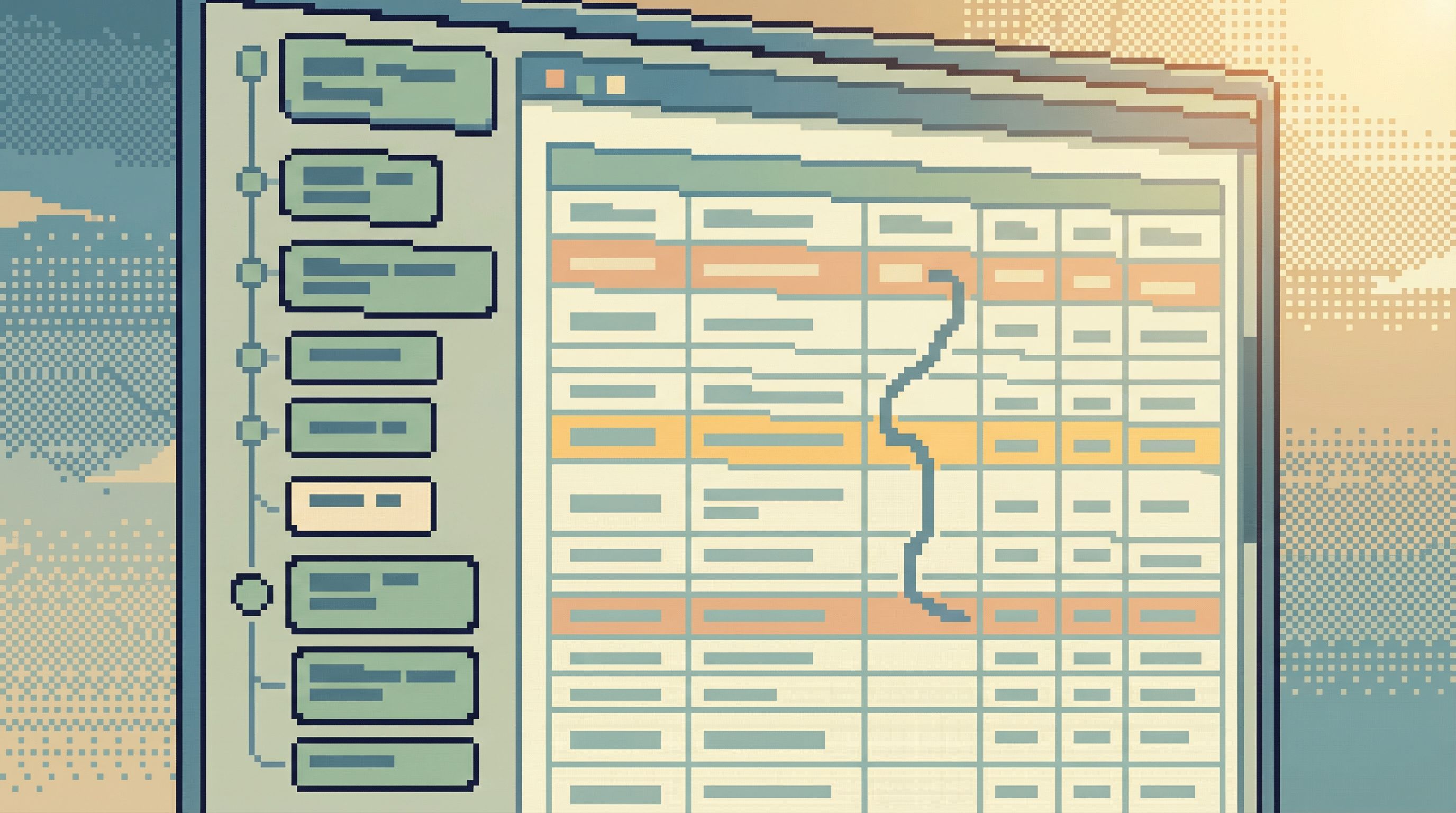
The first time you wire an alert into a canonical read, it will be rough. That’s fine. The key is to harvest the good paths and make them easier next time.
After an incident, ask:
- Which views actually helped us understand what was going on?
- Which queries did we end up re‑running with different parameters?
- Where did we waste time wandering or re‑discovering the same joins?
Then:
-
Promote ad‑hoc queries into named reads.
- If a query was run more than twice during an incident, it probably deserves a name and parameters.
-
Attach reads back to alerts.
- Update alert templates to link directly to the improved view.
-
Capture the story, not just the SQL.
- Add a short description: “Use this when checkout latency spikes; shows affected orders and associated payments in the last 15 minutes.”
This is how you move from “query logs as exhaust” to something closer to shared memory. For a deeper dive on that shift, see Query Logs Are Not Knowledge.
Over time, you’ll build a small catalog of incident‑grade reads that:
- Map directly from key alerts to concrete rows.
- Reflect how outages actually unfold in your system.
- Give new engineers a calm on‑ramp into production data.
Practical tips and patterns that work well
A few patterns show up again and again on teams that are good at moving from metrics to rows.
1. Make customer and order IDs first‑class.
Wherever possible:
- Include user IDs, order IDs, job IDs, or tenant IDs in logs and traces.
- Bubble those IDs up into alert payloads when feasible.
- Make your database browser accept those IDs as first‑class entry points.
This turns “checkout latency is high” into “here are 20 specific orders to inspect” in one click.
2. Standardize time windows.
Incidents love vague time ranges. Your tools shouldn’t.
- Decide on a small set of standard windows: last 5 minutes, 15 minutes, 1 hour.
- Have your alert → browser links pick one by default.
- Make it obvious on screen which window you’re in.
3. Separate incident reads from exploration.
Use different spaces (or even different tools) for:
- Incident reads: narrow, opinionated, low‑risk, focused on specific entities.
- Exploratory analysis: broader queries, schema discovery, experimentation.
Trying to do both from the same noisy SQL IDE is how incidents turn into “data dives” instead of targeted production reads. If that resonates, you might like Production Reads, Not Data Dives.
4. Prefer links over screenshots.
During incidents, encourage people to share links to views rather than screenshots of results. This:
- Keeps everyone literally on the same page.
- Preserves filters and parameters.
- Makes it trivial to rerun the same read after the incident.
A calm database browser should make link‑sharing the default, not an afterthought.
How a tool like Simpl fits into this workflow
Simpl is built around this exact kind of work: calm, opinionated production reads instead of open‑ended exploration.
In the “metrics → rows” workflow, a tool like Simpl acts as:
-
The landing zone for alerts.
Alert links open specific, named reads—already filtered, already scoped. -
The narrow incident browser.
You follow a single path through related entities (user → order → payment → job) without being pulled into the full schema. -
The memory of what worked.
Helpful ad‑hoc reads become named views that future alerts can jump into directly.
You don’t need Simpl to adopt the ideas in this post. But you do need something that behaves more like a calm incident console than a general‑purpose SQL IDE.
Summary
Moving from metrics to rows is where many incidents quietly lose time and focus.
A calmer, more opinionated workflow looks like this:
-
Identify the alerts that really matter.
Focus on the ones that reliably lead you into the database. -
Design one canonical read per alert type.
Map each key alert to a narrow, entity‑centric view of production rows. -
Wire alert payloads into those reads.
Use alert links and parameters to land directly in the right view. -
Keep the incident path narrow.
Treat each incident as a single‑question session; avoid wandering into generic exploration. -
Promote good paths into reusable patterns.
Turn helpful incident queries into named, parameterized reads tied back to alerts.
Do this well, and you change the feeling of incident response:
- From “stare at graphs, then open a scary SQL client”
- To “click alert, see rows, follow a single calm trail to the cause.”
Take the first step
Don’t try to redesign your entire incident workflow at once.
Instead, pick one high‑value alert—the one that most often sends you into production data—and do this:
- Write down the exact tables and entities you usually end up inspecting.
- Create a single, opinionated read that surfaces those rows for a tight time window.
- Add one link to that read into the alert’s notification template.
Run the next incident through that path. Notice what feels calmer, and what still feels rough. Then iterate.
If you want a tool that’s built around this way of working, take a look at Simpl. It gives you a focused, low‑noise surface for turning alerts into concrete, confident reads against your production data—without dragging a full BI stack or admin panel into every incident.