Beyond the Schema Explorer: Designing Database Browsers for Real-World Debugging

Most database tools start with the same promise: you can see everything.
Every table. Every column. Every relationship. A schema explorer in the left pane, a query editor in the center, and a results grid at the bottom.
That’s useful for setup and onboarding. It is not enough for real debugging.
Real-world debugging rarely sounds like:
“Show me the list of tables.”
It sounds like:
- “Why did this user’s subscription cancel even though Stripe says they’re active?”
- “Why did this job run twice?”
- “Why are we missing events for this cohort only in
us-west-2?”
Those questions cut across the schema. They demand context, history, and narrative. A static tree of tables doesn’t help you think that way. It just tells you what exists.
This post is about what comes after the schema explorer: how to design (or choose) a database browser that actually supports debugging in the messy, high-stakes situations you face every week.
Tools like Simpl exist because the usual “IDE with a schema tree” pattern tops out quickly. Debugging needs a calmer, more opinionated approach.
Why debugging demands more than a schema tree
A schema explorer answers one narrow question: what is in this database?
Debugging asks different questions:
- What happened over time?
- How does this record connect to others?
- What changed between “working” and “broken”?
- What’s the smallest slice of data I need to see to be confident?
When your tools are designed around the schema tree, every debugging session turns into:
- Click around tables until you guess the right one.
- Write ad-hoc queries from scratch.
- Open more tabs to keep partial context alive.
- Lose the thread.
We’ve written before about how this kind of infinite flexibility quietly harms focus in Designing Opinionated Data Tools: When Saying ‘No’ Creates Better Developer Focus. Debugging is where that cost shows up most clearly.
A database browser meant for real-world debugging should:
- Start from questions, not tables.
- Bias toward read-first, safe exploration.
- Make relationships navigable, not just visible.
- Preserve your trail so you can explain what you did.
Let’s walk through what that looks like in practice.
Principle 1: Start from the incident, not the schema
When something breaks, nobody says “open the schema explorer.” They paste:
- A user ID
- An order number
- A trace ID
- A timestamp
A good database browser should treat those as first-class entry points.
Patterns that help
1. Entity-first entry
Instead of asking “which table?”, the tool should ask:
- What kind of thing are you looking for? (user, order, job, invoice…)
- What identifier do you have? (email, ID, external reference…)
From there, it should:
- Resolve the entity across the right table(s).
- Show the primary record with a small, opinionated summary (key fields only).
- Offer obvious next steps: related events, payments, jobs, feature flags.
2. Question-shaped shortcuts
Real debugging questions repeat. A browser should make those one click away:
- “Show last 50 events for this user.”
- “Show recent jobs that touched this record.”
- “Show state transitions for this subscription.”
These aren’t dashboards. They’re focused, reusable views that line up with how incidents actually unfold. We go deeper on this kind of repeatable structure in From Ad-Hoc Queries to Repeatable Flows: Systematizing How Your Team Looks at Data.
3. Time as a first-class axis
Incidents are temporal. You care about:
- Before vs after a deploy
- The sequence of events for a user
- Overlaps between jobs, retries, and side effects
Your browser should make it trivial to:
- Filter by time around a known incident window
- Sort by
created_at/updated_at/ domain-specific timestamps - Compare “then vs now” for a single record
A schema tree can’t do that. A debugging-focused browser must.

Principle 2: Read-first, safe-by-default exploration
Debugging often happens under pressure. That’s exactly when you don’t want a tool that makes it easy to:
- Accidentally run a destructive query in production
- Full-scan a 500M-row table during peak traffic
- Copy-paste risky SQL from an incident channel
A browser designed for debugging should be read-first and safe by default.
We’ve written about this philosophy in The Case for a Read-First Database Workflow and in more depth on guardrails in Safe by Default: Practical Patterns for Exploring Production Data Without Fear.
Concrete design choices
1. Read-only by default, with explicit escalation
- Connect to production in read-only mode by default.
- Make write access a deliberate, auditable transition (with clear UI, not a tiny toggle).
- For most debugging, you should never need to leave read-only mode.
Tools like Simpl lean hard on this: calm work comes from making the safest path the easiest path.
2. Guardrails around heavy queries
A debugging browser should:
- Apply sensible row limits automatically (e.g., 200–1,000 rows).
- Warn or require confirmation for clearly dangerous patterns (no
WHEREon a huge table,SELECT *on known-heavy tables, etc.). - Prefer indexed, narrow queries via UI patterns (e.g., always filter by primary key or time range before running).
3. Query history that’s actually safe to reuse
Most tools dump all past queries into a flat history. For debugging, that’s risky:
- You can’t tell which ones are safe.
- You don’t know which environment they were written for.
- You don’t know which incident or question they belonged to.
A better pattern:
- Group queries by investigation or trail.
- Tag them with environment, risk level, and a short description.
- Make it easy to re-run read-only queries and harder to re-run writes.
This is the “trails, not tabs” mindset we explored in From Tabs to Trails: Turning Ad-Hoc Database Exploration into Reproducible Storylines.
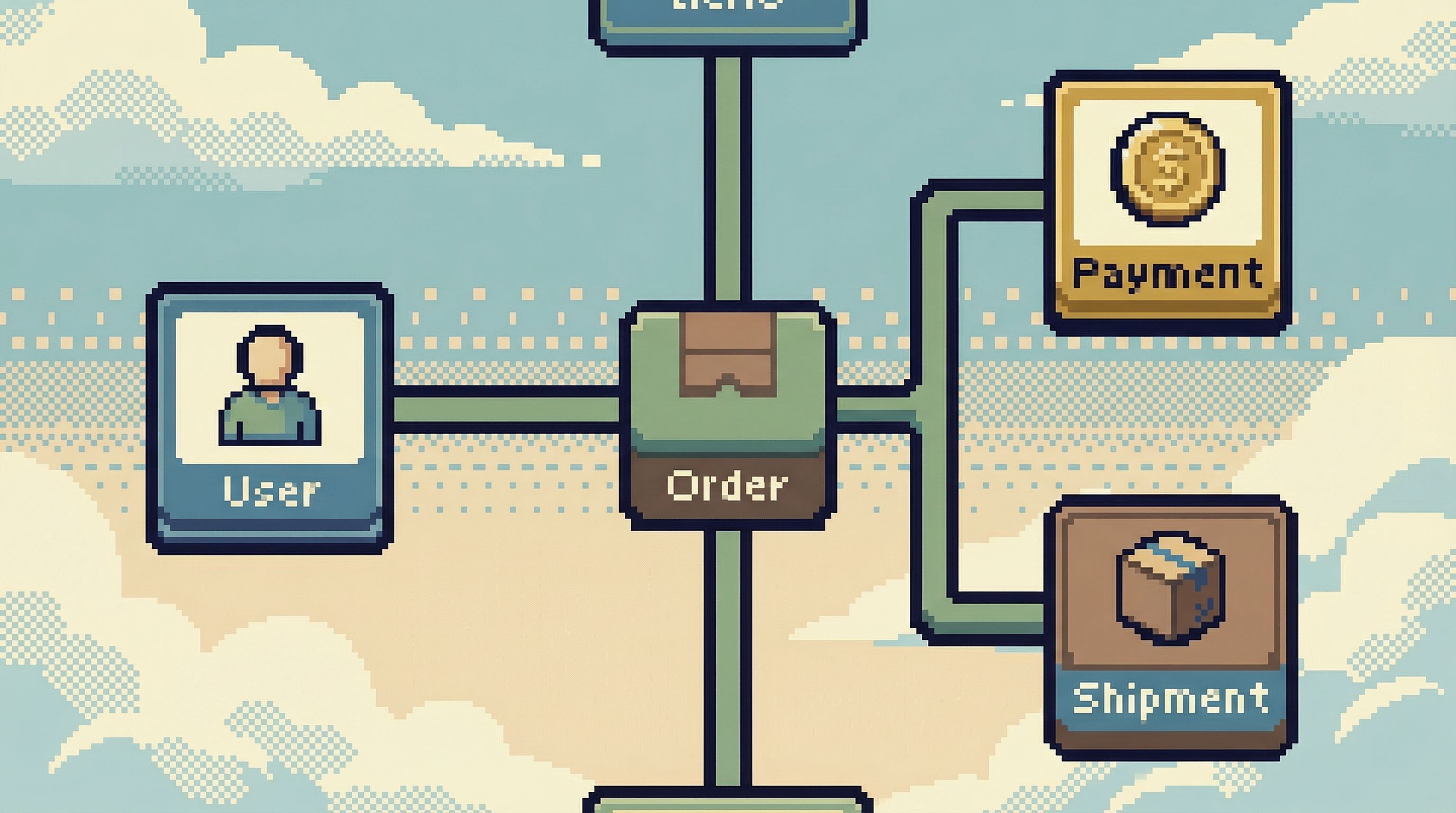
Principle 3: Relationships should be navigable, not just documented
A schema explorer might show you foreign keys. That’s helpful, but it’s not enough.
Debugging is mostly walking relationships:
- User → Orders → Payments → Refunds
- Job → Attempts → Logs → Downstream side effects
- Feature flag → Cohort → Events → Errors
You shouldn’t have to re-write joins from scratch every time. The browser should act like a map, not a pile of blueprints.
Patterns that make relationships usable
1. One-click pivots along foreign keys
From a row in table A, you should be able to:
- Jump to related rows in table B (via a foreign key)
- See a concise preview (count, last few records) before opening
- Stay oriented: the UI should make it clear where you came from
2. Inline relationship summaries
Instead of forcing you to click into every related table, the browser can show small, inline summaries:
- “This user has 3 active subscriptions, 12 invoices, 0 unpaid balances.”
- “This job has 5 attempts, last failed with
timeout.”
These are just queries, but they’re queries encoded into the interface so you don’t have to keep them in your head.
3. Graphs only when they help you think
Visual relationship graphs can be useful, but they’re easy to overdo.
For debugging, you rarely need a full ERD of the entire database. You need a local graph:
- Centered on the entity you care about
- Showing only the 1–2 hops that matter for the question at hand
- With clear labels for direction and cardinality
Heavy, everything-at-once graphs add noise. A calm browser shows just enough of the graph to support the current investigation.
Tools like Simpl take this approach: opinionated navigation over arbitrary visualization.
Principle 4: Preserve the story, not just the result
Most debugging sessions end the same way:
- Someone finds the root cause.
- A message goes into Slack.
- The queries, steps, and checks vanish.
The next time a similar issue appears, you start from zero again.
A better database browser treats every investigation as a storyline:
- What you looked at first
- What you ruled out
- What you finally found
This isn’t about heavy runbooks. It’s about lightweight, automatic structure.
Practical patterns
1. Trails instead of independent tabs
Tabs encourage fragmentation: one query per tab, no clear order.
Trails encourage narrative:
- A linear or branching sequence of steps
- Each step tied to a concrete question (“Check recent invoices for user 123”) and a query
- The ability to replay or adapt the trail for a similar incident later
This pattern is at the heart of how Simpl thinks about exploration: you’re not just querying; you’re leaving a path others can follow.
2. Lightweight annotations
During an incident, nobody wants to write a novel. But they can:
- Add a one-line note to a query: “This confirmed double-charge due to retry bug.”
- Mark a step as “ruled out” or “root cause.”
- Tag a trail with the incident ID or Jira ticket.
Over time, these tiny annotations build a library of debugging patterns your team can reuse.
3. Shareable, scoped views
When you share data from a debugging session, you don’t want to:
- Paste raw SQL into Slack.
- Screenshot a grid with PII.
- Give someone full access to production just so they can see one query.
A debugging-focused browser should make it easy to:
- Share a read-only view of a specific query or trail.
- Redact or mask sensitive columns by default.
- Link directly to “the thing we just looked at” without re-explaining how to get there.
We talk more about this kind of quiet, contextual sharing in Context, Not Dashboards: A Quieter Approach to Sharing Data in Engineering Teams.
Principle 5: Reduce noise during incidents
Incidents are already loud. Your database browser shouldn’t add to it.
When you’re triaging an outage, the last thing you need is:
- A wall of metrics, logs, and charts in the same view as your data
- Dozens of open tabs with half-finished queries
- Constant autocomplete suggestions pushing you toward complex SQL
A calm debugging browser embraces intentional constraints:
- Fewer simultaneous panels
- Clear separation between environments (prod vs staging)
- Minimal chrome: the data and the question are front and center
In Incident Triage Without the Firehose: A Focused Approach to Production Data During Outages, we argued that good incident workflows treat production data as a narrow stream, not a firehose. The same idea applies to your browser’s design.
Practical UX patterns
- Single primary focus area. One main query/result at a time, with quick back/forward through your trail instead of more tabs.
- Environment clarity. Loud, unmissable cues when you’re in production vs staging; no ambiguity.
- Opinionated defaults. Sensible limits, safe sorting, pre-filtered views for common entities.
Tools like Simpl build these constraints in from the start. You sacrifice a bit of raw flexibility in exchange for a lot of calm.
How to move beyond the schema explorer in your own stack
You may not be able to switch tools overnight. That’s fine. You can still bring these principles into how you work today.
Here’s a simple progression:
-
Catalog your real debugging questions.
- Look at recent incidents and Slack threads.
- Write down the actual questions people asked of the database.
- Group them by entity (user, order, job, etc.).
-
Turn recurring questions into saved, read-only views.
- In your current tool, save parameterized queries for:
- “Recent events for user by ID/email”
- “State transitions for subscription by ID”
- “Recent jobs touching a given entity”
- Make them safe: add limits, time filters, and comments.
- In your current tool, save parameterized queries for:
-
Adopt a read-first norm for production.
- Default to read-only connections.
- Require explicit justification for write access during incidents.
- Encourage teams to explore patterns like those in The Minimalist’s Guide to Database Debugging in Incident Response.
-
Start keeping trails.
- Even if your tool doesn’t support trails natively, you can:
- Paste queries and short notes into a shared doc per incident.
- Capture the order you ran them in.
- Link that doc from the incident ticket.
- Even if your tool doesn’t support trails natively, you can:
-
Evaluate tools through a debugging lens.
- When you look at tools like Simpl or others, don’t just ask “does it show the schema?”
- Ask:
- How quickly can I go from a user ID to a meaningful view?
- How easy is it to stay read-only in production?
- Can I walk relationships without re-writing joins?
- Can I preserve and share the story of an investigation?
Summary
A schema explorer is table stakes. Debugging needs more:
- Incident-first entry points so you can start from user IDs, order numbers, and timestamps—not table names.
- Read-first, safe defaults that make calm, non-destructive exploration the path of least resistance.
- Navigable relationships that let you walk the graph of your data instead of re-implementing joins from memory.
- Preserved trails and stories so each investigation becomes a reusable asset, not a one-off heroic effort.
- Noise-reducing UX choices that respect your attention, especially during incidents.
Database browsers like Simpl are built around these ideas on purpose: fewer knobs, clearer flows, and a stronger bias toward understanding over raw power.
Take the first step
You don’t need a full tool migration to move beyond the schema explorer.
Pick one of these to do this week:
- Define a single, safe, saved view for your most common debugging question (usually “what’s going on with this user?”).
- Switch your primary production connection to read-only and see what actually breaks.
- Run your next incident with a simple rule: keep a trail of queries and notes as you go.
If you’re ready to see what a browser looks like when it’s designed around these principles from day one, explore Simpl. The goal isn’t more features. It’s a calmer, more reliable way to debug real systems with real data.