From Permissions to Patterns: Designing Database Access Around Real Read Workflows

Most teams treat database access as a permission problem.
Who can connect? Who can write? Who gets prod?
Those questions matter. But they miss the quieter, more persistent source of friction: how people actually read the database once they’re inside.
If the only thing you design is the permission model, you end up with a familiar outcome:
- Read‑only roles everywhere
- Production still feels scary
- People copy data into spreadsheets or screenshots
- The same ad‑hoc queries get rewritten every week
Access isn’t just who can see data. It’s how that data is approached, navigated, and reused.
This post is about shifting from permission‑first thinking to pattern‑first thinking: designing database access around the real read workflows your team runs every day.
Tools like Simpl are built from that stance: assume most work is read‑heavy, scoped, and repeatable—and then make those patterns the default, not an afterthought.
Why this matters: reads are where the work actually happens
Most production work is read work:
- Tracing what happened to a single user
- Verifying a background job or migration
- Replaying an incident
- Answering a support or success question
Yet most access decisions are framed in terms of writes:
- “We can’t give them prod, they might run UPDATE.”
- “We need stricter roles before support can see this.”
- “Only senior engineers get direct DB access.”
You clamp down on writes, but leave reads as a giant, undifferentiated surface.
The result:
- Cognitive load. A schema tree with hundreds of tables and a blank SQL editor is technically “safe,” but mentally loud.
- Shadow tools. People ask for new dashboards, admin panels, or exports instead of using the database directly. (See From BI Sprawl to Focused Reads: Separating Exploration from Reporting in Your Data Stack.)
- Inconsistent answers. Each person re‑invents their own way to answer the same questions.
Designing access around real read workflows fixes a different class of problems:
- Safer reads by default
- Faster answers with less wandering
- Fewer tools needed to do everyday work
It also makes your permission model simpler, because you’re not trying to solve UX problems with role matrices.
Start with questions, not roles
Most access design starts from a spreadsheet:
- Columns: tables, schemas, environments
- Rows: roles and teams
- Cells: ✅ / ❌ / “ask data team”
Instead, start from a list of recurring questions:
- “What exactly happened to this user’s subscription?”
- “Did this background job run twice or just log twice?”
- “Why is this order stuck in processing?”
- “What did this migration actually change?”
- “What did we see during that incident window?”
For each question, identify:
- Who asks it? (Support, success, on‑call engineer, data, finance…)
- How often? (Daily, weekly, only during incidents?)
- What tables are involved? (Roughly—don’t over‑model.)
- What’s the usual path? (Start from user ID? From order ID? From time window?)
You’ll quickly see that most of your work clusters into a small number of read patterns, not hundreds of unique use cases.
Once you see those patterns, roles become simpler:
- “People who run pattern A and B regularly.”
- “People who only need pattern C during incidents.”
The focus shifts from what they could theoretically touch to what they actually do.
Map the real read workflows
A workflow is more than a query. It’s the path someone takes from question to answer.
A typical support workflow might look like:
- Search by user email or external ID.
- Open a compact view of the user record.
- Jump to recent orders and payments.
- Check a few event logs around a specific timestamp.
An on‑call workflow might look like:
- Start from an alert (service, endpoint, or job).
- Filter logs or events around the incident window.
- Follow a few related keys into other tables.
- Save the trail for the post‑incident review.
To map these workflows:
- Shadow a real session. Sit with someone while they debug or answer a support ticket. Watch the tools, tabs, and copy‑paste.
- Capture the query trail. Note each step: where they start, what they search by, which tables they touch, how they know they’re “done.”
- Look for repetition. Which steps look identical across tickets or incidents? Which parts are pure muscle memory?
You’ll usually find that 70–80% of the work is some variation of:
- Start from a key (user ID, order ID, job ID).
- Follow a short chain of related tables.
- Confirm a small set of fields.
That’s what your access model should be shaped around.

Translate workflows into patterns, then into access
Once you’ve mapped workflows, you can design patterns—reusable structures that show up across tools, queries, and permissions.
1. Define entry points, not just tables
Most tools drop you into:
- A schema browser, or
- A blank SQL editor
Patterns start from entry points that match real work:
- “Lookup user by email or external ID.”
- “Open order by order number.”
- “Filter jobs by name and time window.”
Entry points can be implemented as:
- Saved, parameterized queries
- Purpose‑built views
- Narrow search boxes wired to known keys
The important part is that access is shaped around these entry points, not around raw schema exposure.
This is where a purpose‑built browser like Simpl shines: it treats these entry points as first‑class citizens instead of burying them under a pile of generic SQL tabs.
2. Scope what “navigation” means
Schema‑wide navigation is where people get lost.
Instead of letting anyone jump from any table to any table, define:
- Allowed hops per pattern: from
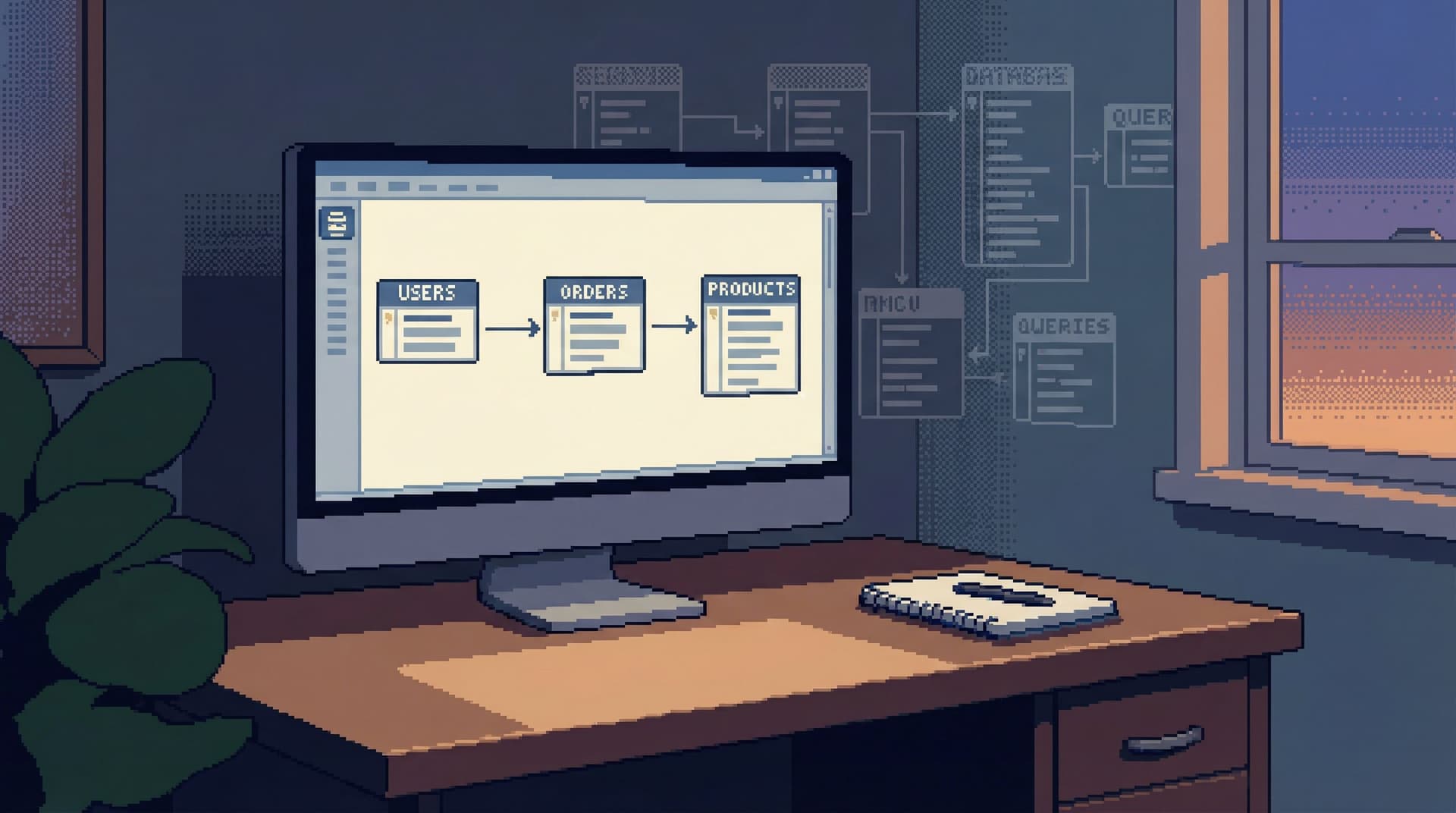
users→orders→payments, but not into every log table. - Contextual joins: pre‑wired links from a row to its most relevant neighbors.
This is the opposite of a schema explorer. It’s closer to a guided trail.
Posts like Read-First, Context-Second: Why Schema-Heavy Views Still Make Production Feels Noisy go deeper on why this matters: schema trees are technically accurate, but they make production feel noisy and risky.
3. Encode safe defaults into the pattern
Patterns are a natural place to embed guardrails:
- Always filter by a key or tight time window
- Always include a
LIMIT - Avoid unbounded joins on hot tables
Instead of documenting these as “best practices,” you bake them into the workflow. The person running the pattern doesn’t have to remember; the pattern carries the safety.
See also Guardrails in the Query Editor: UX Patterns That Make Unsafe Reads Hard by Default for concrete interface ideas here.
4. Attach permissions to patterns, not raw power
Once patterns exist, permissions can be expressed in more meaningful terms:
- Support can run “user trail” and “order trail” patterns in production.
- On‑call engineers can run “job run history” and “incident window” patterns.
- Data folks can define and maintain the patterns, plus run arbitrary queries in a separate, more powerful surface.
You still have roles and grants under the hood, but they’re implementation details. The team thinks in terms of what patterns they can use, not what tables they can accidentally hit.
Tools like Simpl lean into this by making pattern sharing, reuse, and scoping part of the core experience, not a side feature.
Make patterns first-class in your tools
You don’t have to rebuild your stack from scratch to work this way. But you do need to stop treating patterns as:
- Wiki snippets
- Slack screenshots
- One‑off saved queries in someone’s local client
Instead, make them visible, shareable, and versioned.
What “first-class” looks like
A read pattern should:
- Have a clear name and description
- Accept a small number of parameters (user ID, order number, time range)
- Be runnable by non‑authors with confidence
- Produce results that are easy to interpret and share
- Be easy to refine without breaking older uses
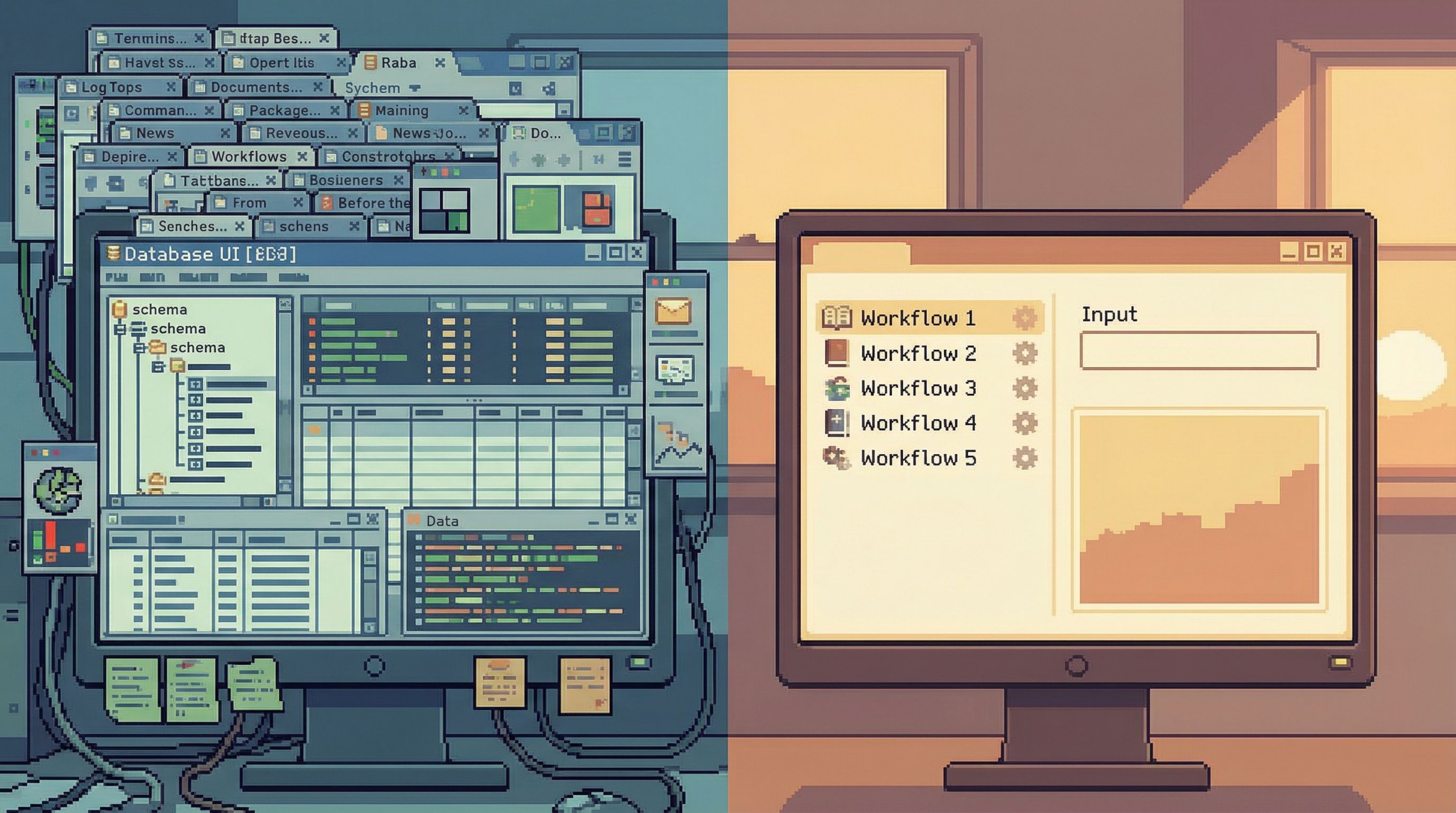
In a calm database browser, that might look like:
- A short list of “team queries” or “workflows” instead of a blank slate
- A single input box for the key you already have (email, ID, reference)
- A linear view of the steps taken, so someone else can replay the same trail later
This is the same idea behind single‑query incident reviews and one‑query mindsets: structure work as a clear, replayable path instead of a pile of ad‑hoc commands.
Reduce modes, not power
When teams talk about “access,” they often respond by adding more modes:
- A “safe” read‑only view
- An “advanced” SQL console
- A separate BI workspace
- A custom admin panel for each team
Every new mode comes with:
- Another permission model
- Another way for context to fragment
- Another place for queries to hide
You don’t need more modes. You need fewer, better‑shaped paths.
A calm setup often looks like:
- One focused database browser for production reads (e.g. Simpl)
- Pattern‑driven entry points
- Guardrails around unsafe reads
- Easy sharing of trails
- One BI tool for reporting and metrics
- Dashboards, aggregates, long‑term trends
- One heavy SQL surface for specialists
- Migrations, large backfills, deep analysis
Everyday work happens in the first one. The other two are rare, deliberate escalations.
This separation is the core of the “anti‑BI habit” and “anti‑admin panel” stance: reach for a quiet browser first, not a dashboard or a write‑capable admin.
A practical sequence for your team
If you want to move from permissions to patterns without boiling the ocean, work in this order:
-
Inventory real questions for 2–3 key groups.
- Support / success
- On‑call / SRE
- Product / data
-
Shadow 3–5 real sessions.
- Capture the query trail
- Note where people hesitate or open extra tools
-
Extract 5–10 candidate patterns.
- Name them in plain language
- Identify entry points and expected outputs
-
Implement patterns in your existing tools.
- Saved queries with parameters
- Views or materialized views if needed
- Narrow search UIs in your browser or admin
-
Attach access to patterns.
- Decide who can run which patterns in which environments
- Keep the underlying grants simple and aligned
-
Introduce a calmer browser if needed.
- If your current tools fight this approach, adopt a focused browser like Simpl where patterns, guardrails, and trails are first‑class.
-
Iterate from real usage.
- Watch which patterns get used
- Merge or retire ones that cause confusion
- Add new ones only when you see repeated ad‑hoc trails
Over time, your database access story becomes less about “who can log into prod” and more about “what well‑understood paths exist through prod.”
Summary
Designing database access around real read workflows shifts the focus from theoretical risk to practical clarity.
Instead of:
- Starting from roles and tables
- Dropping people into schema trees and blank editors
- Hoping best practices will be followed
You:
- Start from real, recurring questions
- Map the actual trails people follow through data
- Turn those trails into named, shareable patterns
- Attach permissions to patterns, not raw power
The result is a calmer production experience:
- Fewer tools, fewer modes
- Safer reads by design
- Shared, replayable paths instead of private, one‑off queries
This is the quiet foundation behind a lot of the ideas in Calm Data: narrow query surfaces, guardrails by UX, and read‑first incident reviews. Patterns are how those ideas show up in everyday work.
Take the first step
You don’t need a full redesign to start working this way.
Pick one team and one workflow:
- Support’s “what happened to this user?” trail, or
- On‑call’s “replay this incident window” trail
Shadow a real session, capture the steps, and turn that into a single named pattern—one saved query, one small view, one narrow entry point.
Then make that pattern the default way to answer that question.
Once you’ve done it once, do it again for the next workflow. When you’re ready to make patterns first‑class instead of ad‑hoc, bring them into a focused browser like Simpl, where read‑heavy work is the main event, not a side effect of a bigger tool.
Start with one pattern. Let access grow from there.